In this guide, we will provide detailed instructions on how to change DNS servers for a specific domain through your client area. The login credentials for the client area were sent to your email when you first placed an order and registered. If you wish, you can change your client area password by following these instructions - How to reset the client area password?
- Log in to your user panel
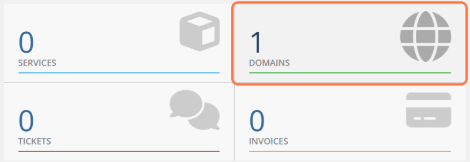
- Click on "DOMAINS"
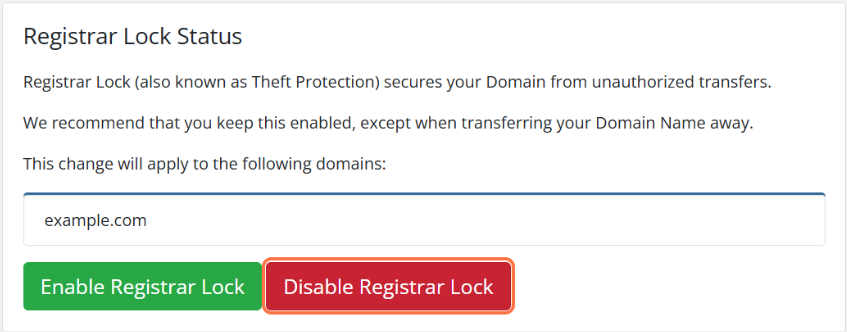
Before any change to DNS nameservers, it is necessary to check whether the domain is locked or unlocked. For the change to be successful, the domain must be unlocked. Domain locking (also known as Registrar Lock or Theft Protection) protects your domain from unauthorized transfers. We recommend keeping the domain locked, except when transferring your domain to another registrar or when you need to change the DNS nameservers for the domain.
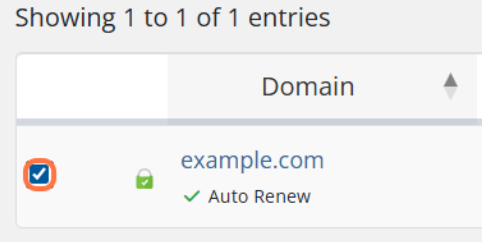
- Click the checkbox next to the domain for which you want to change the DNS servers (You can also change it for multiple domains at once)
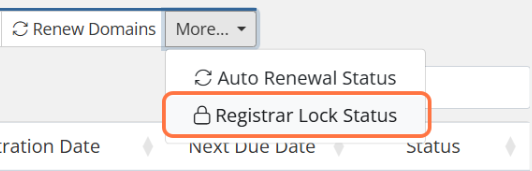
- Click on "More" then "Registrar Lock Status"
- Click on "Disable Registrar Lock"
- If the unlocking is successful, you will receive a notification "Changes Saved Successfully!" and all selected domains will be unlocked
There is another way to change the domain lock status if you want to unlock domains one by one:
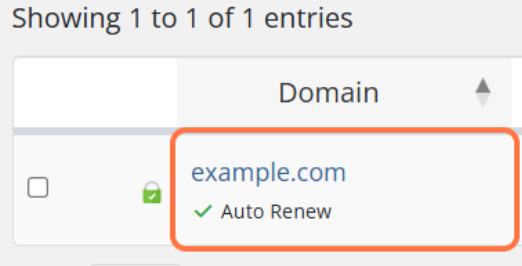
- Click on the domain you want to unlock
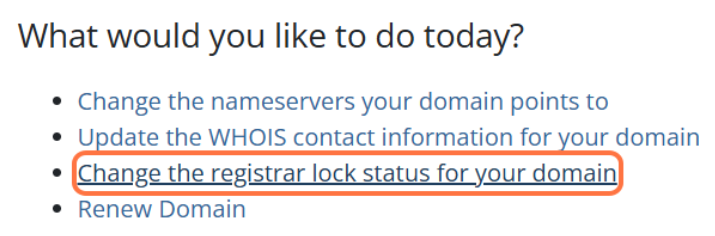
- Click on "Change the registrar lock status for your domain"
- Click on "Disable Registrar Lock"
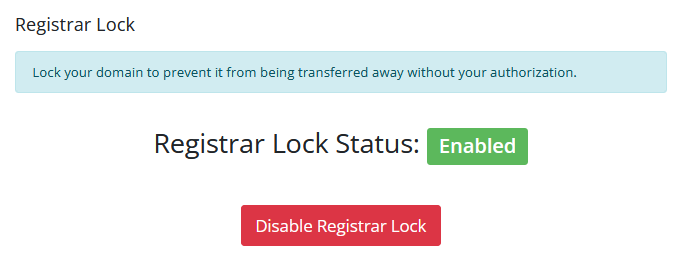
- You will receive a notification "Registrar Lock Status: Disabled"
After unlocking the domain, you can proceed with changing the DNS nameservers
- Return to the "My Domains" page
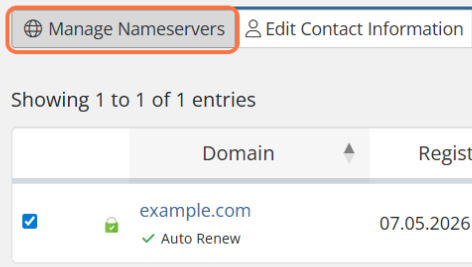
- Click the checkbox next to the domain name for which you want to change the DNS nameservers
- Click on "Manage Nameservers"
- If you want to use our nameservers, select "Use default nameservers" and click "Change Nameservers"
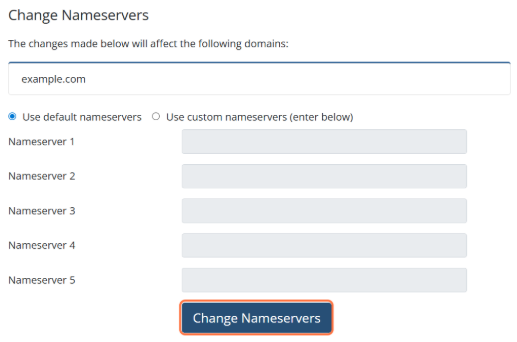
- If you want to use other nameservers, click on "Use custom nameservers (enter below)"
- Enter the new DNS nameservers into the fields and click "Change Nameservers"
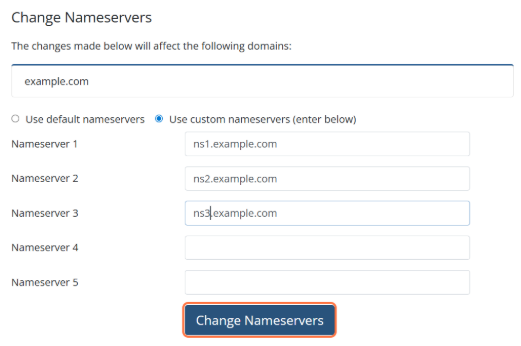
- You will receive a notification "Changes Saved Successfully!"