SkyDNS Manager is a tool in your client account that lets you manage DNS records yourself for a domain you purchased from us without a hosting plan. This guide explains how to activate DNS management for your domain.
Step 1: Open DNS Manager
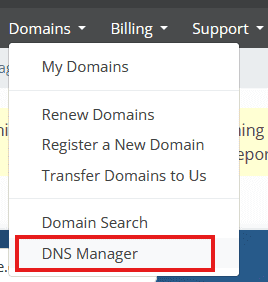
Log in to your client account at skyhosting.rs, open the Domains menu, and click the DNS Manager submenu item.
Step 2: Select your domain
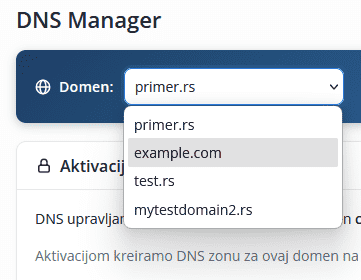
At the top of the page, choose a domain from the dropdown. Only domains that do not have a hosting plan with us are listed - if the domain you're looking for has hosting, its DNS is already managed through cPanel.
Step 3: Read the warning and confirm
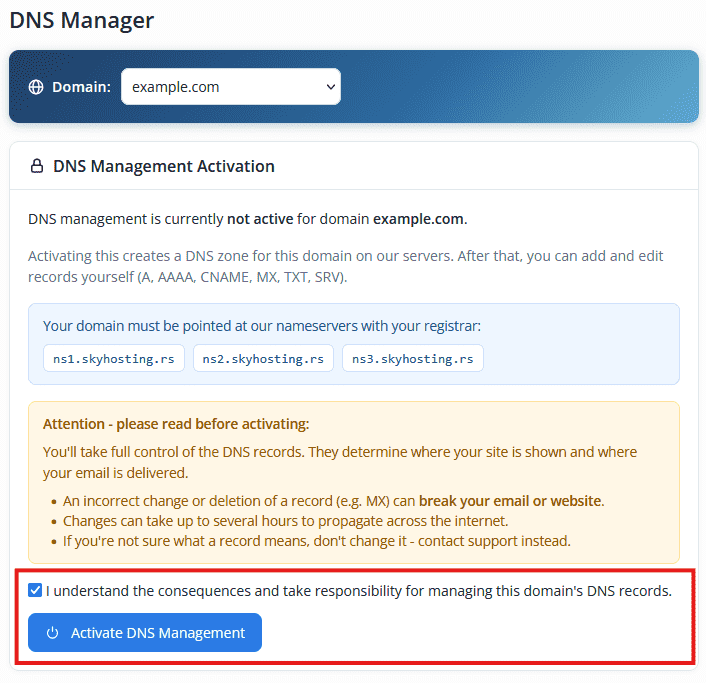
Before activation, the page explains that you'll get full control over the DNS records for this domain - including the types A, AAAA, CNAME, MX, TXT, and SRV (each is explained in detail in our "Managing Your DNS Records" guide).
- An incorrect change or deletion of a record (e.g. the MX record) can break your email or website.
- Changes can take up to several hours to be visible everywhere on the internet.
- If you're not sure what a record means, don't change it - contact support instead.
To continue, check the box "I understand the consequences and take responsibility for managing this domain's DNS records" - the "Activate DNS Management" button becomes available only after that.
Step 4: Point your domain to our nameservers
For the DNS records you set up here to actually take effect, your domain must be pointed - at your registrar (wherever you registered/purchased it) - to our nameservers:
ns1.skyhosting.rs ns2.skyhosting.rs ns3.skyhosting.rs
Step 5: Click "Activate DNS Management"
After clicking, a DNS zone for your domain is created on our servers. You can now add and edit DNS records - see our Managing Your DNS Records guide for the next steps.
What if "Request pending approval" appears instead?
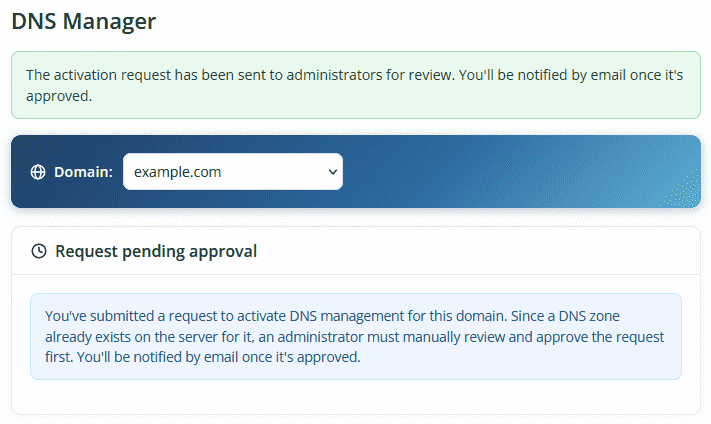
In rare cases (for example, if a DNS zone already existed for your domain for some earlier reason), activation doesn't complete automatically - instead you'll see a message that the request is waiting for manual review by an administrator. This is normal and doesn't mean anything is broken - you'll receive an email as soon as the request is approved, usually within the same business day.